Stock takes
To create a new stocktake log into your back office and click on products > stock take in the main menu. You are presented with a list of existing stock takes.
To create a new stock take click on ‘Start new stocktake’ and enter the stock take description and click save.

In the edit stock take screen click on ‘Add products to stocktake‘. You will be presented with a list of all your products. Select all the products that you wish to have on your stocktake list and click Accept.
Note – stock takes always works best per department. Use the department dropdown to filter your products per department on the search screen.
You can also import a list of products to add to the stocktake.
In the COUNTED column, enter the value counted for that item. Continue with all items until done.
SOH – Displays the current stock on hand for that product.
Difference – Displays the difference between current stock on hand and counted quantity.
After confirming counted quantity is correct click on ‘Process stocktake‘. A popup screen will appear.
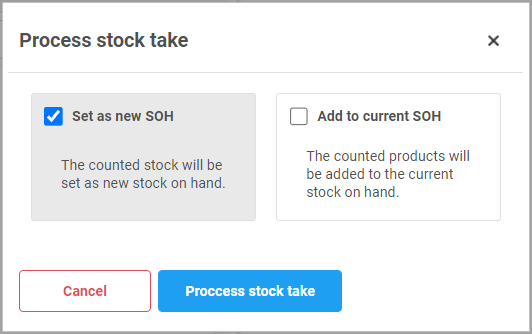
Set as new SOH – Sets the counted quantity as your new stock on hand.
Add to current SOH – Adds the counted quantity to your current stock on hand.
Note – After processing stock take this action can’t be undone. Please make sure counted quantity is correct.